Docker Compose for Homelab Beginners
Your first multi-container stack, explained end to end
 Siddh Mistry
November 11, 2026
Updated November 11, 2026
3 min read
Why Compose, not just docker run
If you’ve only ever run containers one at a time with docker run, you already know the pain: remembering which flags you used last time, manually creating networks, starting things in the right order after a reboot. Docker Compose fixes all of that with one YAML file that describes your entire stack — and one command to bring it all up or tear it all down.
For a homelab, that’s the difference between “I’ll fix the server when I get home” and “I’ll SSH in and run docker compose up -d from my phone.”
The stack we’re building
A dead-simple, real-world shape: a reverse proxy in front of an app, talking to a database. This is the backbone of a huge number of self-hosted services (Nextcloud, Ghost, Immich, you name it).
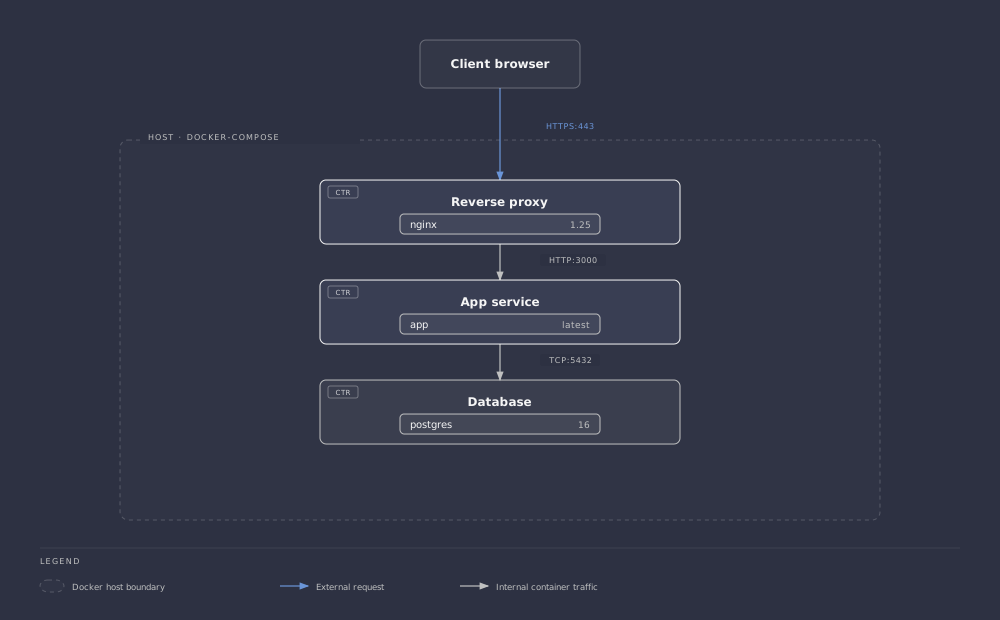
- nginx — reverse proxy, the only thing exposed to the internet
- app — your actual service
- postgres — the database, never exposed outside the Docker network
The docker-compose.yml
1 | version: "3.9" |
A few things worth calling out for beginners:
- Only
proxypublishes ports.appanddbdon’t needports:at all — Compose automatically puts every service on the same internal network, soappcan reachdbjust by using the service namedbas the hostname. That’s why the connection string above says@db:5432, not an IP address. depends_oncontrols start order, not readiness. Compose will startdbbeforeapp, but it won’t wait for Postgres to actually finish initializing. For anything that matters, add a healthcheck (see below) or build in retry logic on the app side.- Named volumes (
db_data) survivedocker compose down. If you want to wipe everything including data, you needdocker compose down -v— that extra-vis the difference between “restart clean” and “delete my database.” ${DB_PASSWORD}pulls from a.envfile sitting next to yourdocker-compose.yml. Never hardcode secrets directly in the YAML if you’re ever going to commit this to git.
Adding a healthcheck (the thing most tutorials skip)
1 | db: |
Then change app’s dependency to actually wait for it:
1 | app: |
Now app won’t even attempt to start until Postgres reports healthy — no more crash-loop on first boot after a reboot.
The commands you’ll actually use
1 | docker compose up -d # start everything, detached |
Where to go from here
Once this clicks, the natural next steps are:
- Put Traefik or Caddy in front instead of raw nginx for automatic HTTPS certificates
- Split secrets into a proper
.envfile and add it to.gitignore - Add a second Compose file (
docker-compose.override.yml) for dev-vs-prod differences - Look at Watchtower for automated image updates, if you trust upstream maintainers enough
Compose won’t replace Kubernetes for a real production fleet, but for a homelab running a dozen self-hosted services on one box, it’s honestly all you need.
I Audited My Own Home Network for Security Holes
Next DocumentPHP2Shell: Inside the Worst PHP RCE in Years (CVE-2026-109618 & CVE-2026-109619)
Related Documents
Other specifications filed under the same module.
 DWG-77201
MOD-09 · Self Hosting
Setting Up WireGuard VPN in 15 Minutes
A fast, practical WireGuard VPN setup guide — server config, client config, and how to actually connect, from scratch in about 15 minutes.
Siddh Mistry
·
Nov 11, 2026
 DWG-42175
MOD-09 · Self Hosting
Hermes Brain: An Obsidian Second Brain Your AI Agent Can't Forget
Hermes Brain is a free, MIT-licensed Obsidian vault template for Hermes and OpenClaw agents: automatic session archiving, multi-harness agent skills, local semantic search, secret scrubbing, and human-reviewed memory promotion.
Siddh Mistry
·
Oct 30, 2026
 DWG-04592
MOD-09 · Self Hosting
I Built My Own Self-Hosted AI Assistant (No OpenAI Subscription Needed)
A practical walkthrough of building a self-hosted AI assistant using OpenClaw and Hermes — no cloud subscriptions, no vendor lock-in, full control over your data.
Siddh Mistry
·
Sep 06, 2026
Field Notes & Comments
Session-local discussion — comments here are not persisted to a server in this build.
Loading discussion module…